Google Drive Search Operators: Find Any File Instantly
Google Drive's search bar accepts special operators that filter by file type, owner, date, and more. Here's how to use them to find exactly what you're looking for.
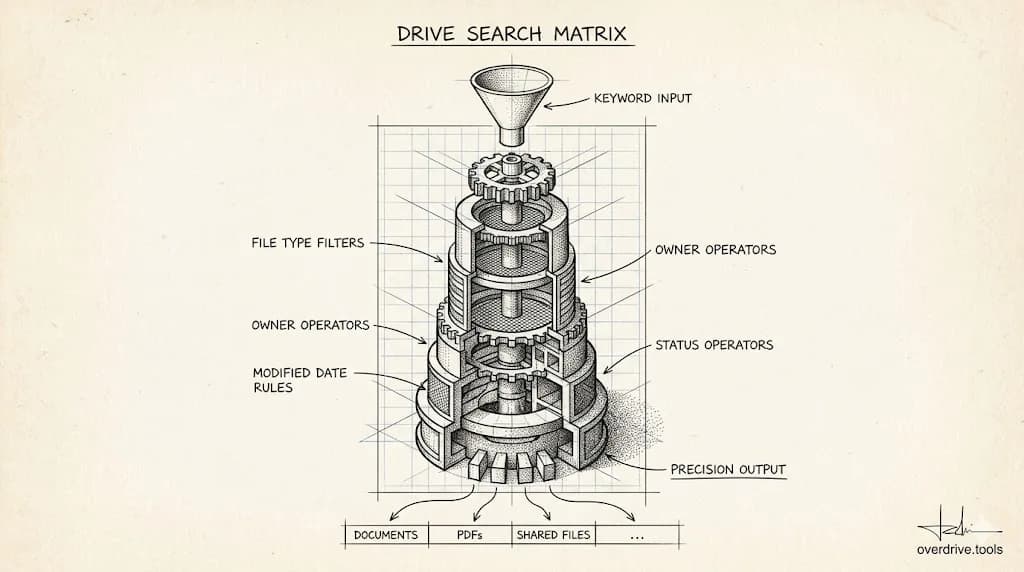
Google Drive's search bar looks simple, but it accepts a set of operators that let you filter results with precision — by file type, owner, date modified, sharing status, and more. Most people type a keyword and scroll through results. With operators, you type once and land exactly on what you need.
What Are Search Operators?
Search operators are special commands you type directly into the Drive search bar to filter results. Instead of searching for "budget" and getting every file that mentions the word, you can search for title:budget type:spreadsheet owner:me and get only your own spreadsheets with "budget" in the filename.
Operators work alone or in combination. The more you stack, the narrower and more precise your results.
File Type Operators
The type: operator filters by file format. This is one of the most useful operators because Drive stores dozens of file types and native type-based filtering doesn't exist in the main UI.
Google native formats:
type:document— Google Docstype:spreadsheet— Google Sheetstype:presentation— Google Slidestype:form— Google Formstype:drawing— Google Drawingstype:script— Google Apps Scripttype:site— Google Sites
Uploaded file formats:
type:pdf— PDF filestype:image— image files (JPG, PNG, GIF, etc.)type:video— video filestype:audio— audio filestype:folder— folders only (useful for navigation)
Examples:
type:pdf— shows all PDFs in your Drivetype:video— useful for finding large video files eating storagetype:folder title:archive— finds folders named "archive"
Title and Content Search
By default, Drive searches both filenames and file contents. You can restrict it to just the filename using the title: operator.
title:contract— only files with "contract" in the filenametitle:"Q1 report"— files with the exact phrase in the filename (use quotes for multi-word phrases)
Without title:, Drive also searches inside document text. That's useful for finding a document you remember writing a specific phrase in, but it generates more results. Use title: when you know what the file is called.
Exact phrase search: Wrap any multi-word phrase in quotes to search for it exactly.
"project proposal"— finds files containing that exact phrasetitle:"meeting notes"— files with exactly "meeting notes" in the name
Owner and Sharing Operators
These operators filter by who created or shared a file — essential for large shared drives where files from many people accumulate.
Owner operators:
owner:me— only files you own (excludes files shared with you)owner:alex@company.com— files owned by a specific personcreator:alex@company.com— files created by someone (similar to owner but captures Google-native files they created)
Sharing operators:
from:alex@company.com— files shared with you by a specific personto:alex@company.com— files you've shared with a specific personis:shared— all files that have been shared with anyone
Examples:
owner:me type:document— all Google Docs you ownfrom:manager@company.com type:spreadsheet— spreadsheets your manager shared with youis:shared owner:me— all your files that are currently shared with others
Date Operators
Date operators filter by when a file was last modified. The format is YYYY-MM-DD.
before:2025-01-01— files not modified since before January 2025after:2024-06-01— files modified after June 2024before:2024-12-31 after:2024-01-01— files modified during 2024
Practical uses:
before:2023-01-01 owner:me— your old files that haven't been touched in years, good candidates for archiving or deletionafter:2026-01-01 type:document— recent Google Docs you've created or edited this yearbefore:2024-01-01 type:video— old video files potentially worth deleting
Note that "modified" means any edit to the file, not just creation. A document you created in 2020 but edited last month will show up in recent date searches.
Status Operators
These filter files by their current state in Drive.
is:starred— files you've starredis:trashed— files currently in Trash (these still count toward your storage)is:unorganized— files that aren't in any folder (also called orphaned files)
is:unorganized is particularly useful. Files can end up without a folder when a shared folder is deleted, when sync issues occur, or when files are moved out of folders without a destination. They exist and count toward storage but don't appear in normal navigation.
Searching is:unorganized owner:me surfaces all your orphaned files so you can sort or delete them.
Combining Operators
The real power comes from combining operators. You can stack as many as you need, separated by spaces.
Find old large files to delete:
type:video before:2023-01-01 owner:me
Find documents someone shared with you recently:
from:colleague@company.com type:document after:2026-01-01
Find your shared spreadsheets:
owner:me type:spreadsheet is:shared
Find starred PDFs:
is:starred type:pdf
Find files in trash:
is:trashed owner:me
Combining owner:me with other operators is especially useful in shared environments where your Drive contains both your files and files others have shared with you. Adding owner:me restricts results to only what you're responsible for.
What Drive Search Doesn't Support
Unlike Gmail, Google Drive's search bar doesn't support size-based filtering (larger:10M doesn't work in Drive the way it does in Gmail). To find files by size, use Google Drive's Storage view at drive.google.com/drive/quota — it lists your files sorted by storage consumed.
Drive search also doesn't support Boolean OR logic natively. A search for budget OR finance returns files containing either word, but the OR is implicit — Drive searches for both terms separately. There's no explicit AND/OR syntax beyond combining operators.
You also can't negate a term the way you can in some search engines. There's no NOT operator or -keyword syntax that reliably excludes results in Drive. If you need to exclude a file type or owner, the best workaround is to combine positive operators to narrow results rather than trying to exclude specific values.
Wildcard searches (bud* to match "budget," "budgeting," etc.) are also not supported. Drive matches exact terms and their common variants, but you can't use glob-style patterns in the search bar.
Using Search Operators for Storage Cleanup
Operators become especially useful when you're trying to clean up Drive storage. Finding old videos (type:video before:2023-01-01), locating all your PDFs (type:pdf owner:me), or surfacing orphaned files (is:unorganized owner:me) gives you targeted lists to review and delete rather than scrolling through everything.
If your Drive has grown large enough that search operators alone aren't enough to get a handle on what's consuming space, Overdrive can scan your entire Drive and show a size-sorted view of all files — without needing to run individual searches.
Frequently Asked Questions
Do search operators work in the mobile app? Basic keyword search works on mobile, but most operators have limited or no effect in the Google Drive mobile app. For full operator support, use Drive on desktop.
Can I save a search to reuse it?
Google Drive doesn't have a native saved search feature. You can bookmark the URL of a search result page in your browser, which preserves the query and reruns it when you revisit. This works especially well for recurring cleanup searches like type:video before:2023-01-01 owner:me — bookmark it once and run it monthly without retyping.
Does owner:me include files I've created in Shared Drives?
No. Files in Shared Drives are owned by the organization, not by individuals. owner:me only returns files in your personal My Drive that you own. To search Shared Drives, navigate into the specific Shared Drive first, then use the search bar.
Why does my search return too many results even with operators?
Operators narrow results but Drive still searches file content by default. Adding title: to your query restricts the search to filenames only, which typically reduces results significantly. Combining multiple operators also narrows things down.
Does search find files shared with me that aren't in my Drive?
Yes. Files in "Shared with me" are searchable by default — Drive indexes content across everything accessible to your account, not just files in My Drive. Use owner:me to exclude them and focus only on files you own. This distinction matters when doing storage cleanup, since files shared with you don't count against your quota; only files you own do.
Related Articles
- How to Organize Google Drive
- Google Drive Folder Structure: A Simple System That Actually Works
- Google Drive Naming Conventions