Shared Drive vs My Drive: Key Differences
Shared Drive files are owned by the team, not the individual. Here's how Shared Drives differ from My Drive — and when you should be using each.
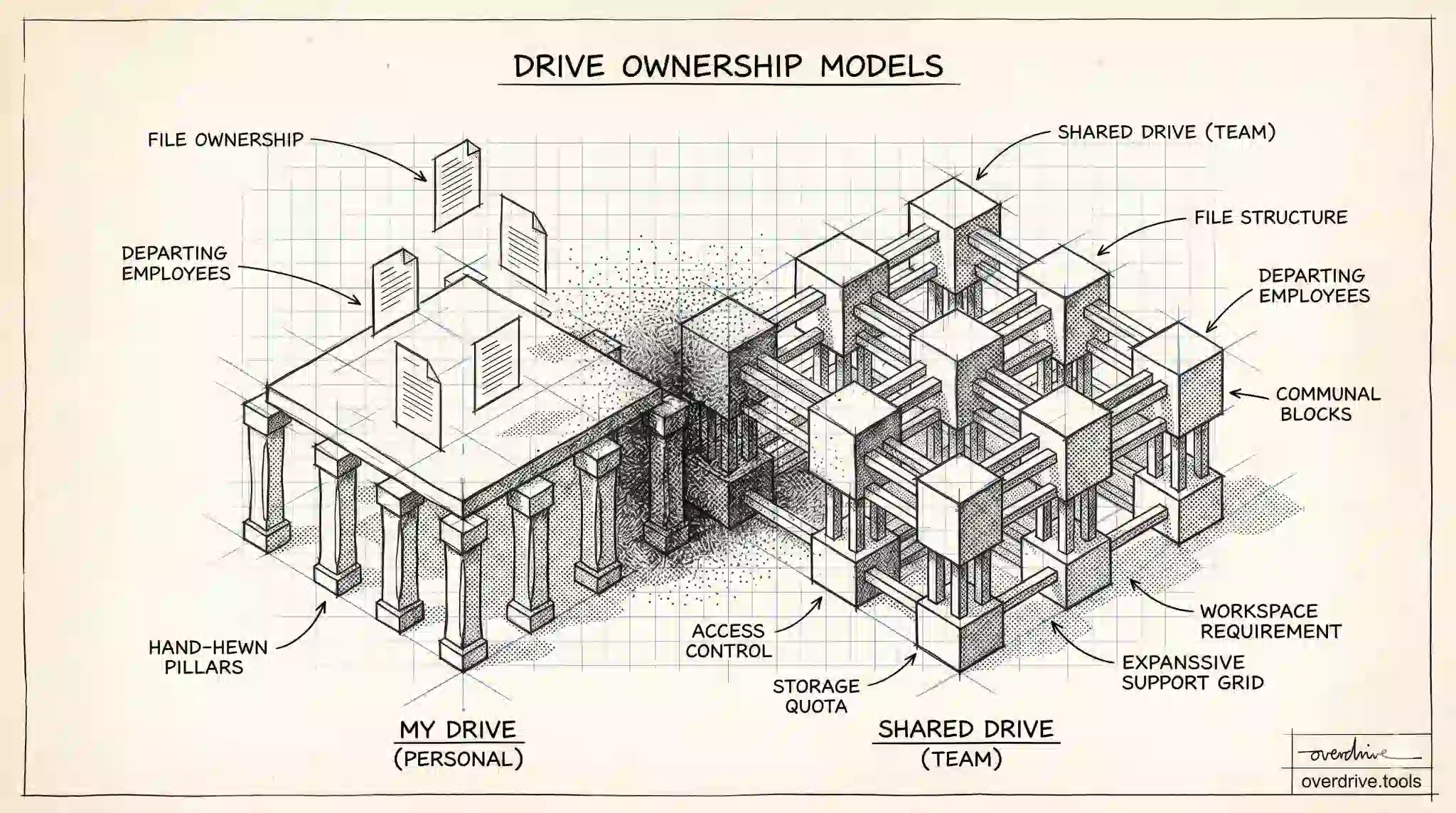
If you use Google Drive through a Google Workspace account at work or school, you've probably noticed two sections in the left sidebar: My Drive and Shared drives. They look similar and contain files you can open the same way, but they work very differently — especially when it comes to ownership, access control, and what happens when someone leaves the organization.
The Core Difference: Who Owns the Files
In My Drive, you own every file you create or upload. Ownership is tied to your personal Google account. You can share those files with others, but you remain the owner.
In a Shared Drive, files are owned by the organization — not by any individual. When you create a file inside a Shared Drive, it belongs to the team, regardless of who created it. This distinction matters more than it might initially seem.
What Happens When Someone Leaves
This is where the ownership model becomes critical for teams.
When a user leaves an organization and their Google Workspace account is deleted, any files they owned in My Drive become ownerless — unless an admin manually transfers ownership before the account is deleted. In practice, important team documents frequently disappear or become inaccessible when an employee leaves because they were stored in that person's My Drive rather than in a Shared Drive.
Files in a Shared Drive are unaffected when a member leaves. The files stay exactly where they are because ownership belongs to the drive itself, not to any user. New members immediately have access to everything in the drive based on their assigned role, with no manual file transfer needed.
Access and Permissions
My Drive and Shared Drives use different permission models.
In My Drive, you set sharing permissions per file or per folder. Folders can be shared with specific people or made available via link, and files inside inherit those settings (though you can override them individually). The person who owns the file controls who can access it.
Shared Drives use membership roles that apply across the entire drive. Members are assigned one of five roles: Viewer, Commenter, Contributor, Content Manager, or Manager. These roles determine what actions a member can take across everything in the drive — you can't give one person Content Manager access to only one folder while restricting them elsewhere in the same Shared Drive.
The tradeoff is predictability. In a Shared Drive, everyone's access level is consistent and easy to audit. In My Drive, sharing accumulates over time in ways that become difficult to track — a file can end up with dozens of individual sharing entries from years of ad-hoc collaboration.
Storage: Who Pays for What
Files in My Drive count toward the storage quota of the individual owner. If you have a personal Google account or a Workspace account with a per-user storage limit, your files in My Drive draw from your quota.
Files in a Shared Drive count against the organization's pooled storage rather than any individual member's quota. For organizations on Workspace Business Standard, Business Plus, or Enterprise plans, this pooled storage is shared across all users in the organization. Individual members don't need to worry about their personal quotas being consumed by team project files.
When to Use Each
My Drive is the right place for files that are genuinely personal: draft documents you haven't shared yet, personal notes, private project work, and anything that's yours and not part of a team workflow.
Shared Drives are the right place for anything a team collaborates on, anything that needs to outlast any individual contributor's tenure, and anything where consistent access controls matter. Project files, department resources, client-facing documents, and company templates all belong in Shared Drives.
A common mistake is using My Drive for team work because it's the default and most familiar. This creates the exact scenario where a departing employee takes critical files with them — not intentionally, but because the files were stored in their personal Drive rather than a team-owned location.
If you're trying to audit where your organization's files actually live and who has access to what across both My Drive and Shared Drives, Overdrive can map out your permissions landscape and surface files that may be in the wrong place — or accessible to the wrong people.
How to Move Files from My Drive to a Shared Drive
Moving files from My Drive into a Shared Drive changes ownership from the individual to the organization. This is a one-way transfer — you can move files from a Shared Drive back to My Drive, but doing so reassigns ownership to your personal account, which is usually not what teams want.
To move a file, drag it from My Drive into the Shared Drive in the left sidebar, or right-click and use Move to. You'll be prompted to confirm that you understand ownership will transfer. For large migrations, Google's Drive admin tools allow bulk moves.
A few things to check before moving: confirm the file isn't owned by someone else (you can only move files you own into a Shared Drive), and verify the destination Shared Drive has the right membership so access doesn't become broader than intended.
Limitations of Shared Drives
Shared Drives are the right default for team files, but they come with a few constraints worth knowing.
Shared Drive membership roles are all-or-nothing at the drive level — you can't give someone Manager access to one subfolder while restricting them elsewhere in the same drive. If you need that level of granularity, you'd need separate Shared Drives.
Google Workspace limits the number of Shared Drives per organization (typically 50,000 or more depending on plan, which rarely matters in practice) and limits membership per drive. Files in Shared Drives also can't be owned by external users — external collaborators can be given access to files, but ownership stays within the organization.
Finally, not all third-party Google Drive integrations support Shared Drives fully. Some older apps built on the Drive API may only work with My Drive files.
Frequently Asked Questions
Can I share a Shared Drive with people outside my organization? Yes, if your Workspace admin has enabled external sharing for Shared Drives. External users can be added as members with Viewer, Commenter, or Contributor roles. They cannot be given Content Manager or Manager roles. Check with your admin if external sharing is a requirement.
What happens to Shared Drive files if the organization cancels Google Workspace? If an organization's Workspace account is deleted, Shared Drive files are inaccessible because the drives belong to the account. This is distinct from My Drive files owned by individual users, which follow their personal accounts. It's worth exporting important Shared Drive contents via Google Takeout before any planned account closure.
Can I create a Shared Drive on a free Gmail account? No. Shared Drives are exclusively a Google Workspace feature. Free personal Google accounts have My Drive only. If you're collaborating with others on a free account, shared folders in My Drive are the closest equivalent — though they lack the ownership protections that Shared Drives provide.
If I'm the only one left in a Shared Drive, do the files stay? Yes. Shared Drive files persist regardless of how many members remain, because ownership belongs to the drive itself rather than any individual. An empty Shared Drive with one remaining member is no different from a fully populated one in terms of file stability.
How do Shared Drives appear to new members? When someone is added to a Shared Drive, the entire contents of the drive immediately become accessible to them based on their assigned role — no need for the original owner to share individual files. This is one of the key usability advantages over My Drive-based sharing, where new collaborators need to be added file by file or folder by folder.
Shared Drives Require Workspace
One practical note: Shared Drives are a Google Workspace feature and are not available on free personal Google accounts. If you're using a @gmail.com address, you won't see the Shared drives section at all. It's available on all Workspace tiers from Business Starter upward.
Related Articles
- Google Drive Folder Structure Best Practices
- Google Drive Permissions Explained: Viewer, Commenter, Editor, and Owner
- How to Organize Google Drive