How to Audit Third-Party Apps Connected to Your Google Drive
A step-by-step look at how to find which apps have access to your Google Drive, what permissions they hold, and how to revoke the ones you no longer use or trust.
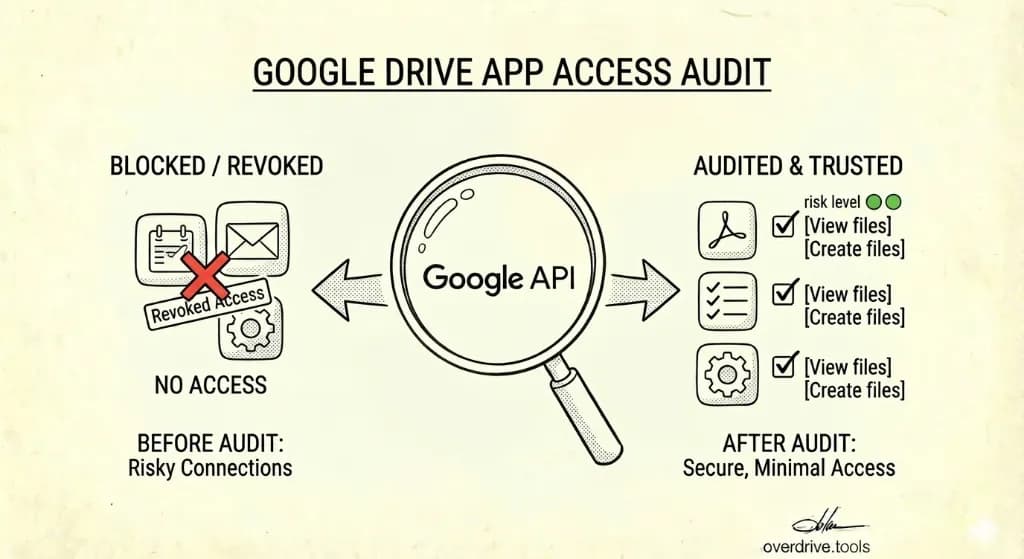
Every time you click "Sign in with Google" or grant an app permission to access your Drive, you're creating a connection that persists indefinitely—until you manually remove it. Changing your Google password doesn't revoke these connections. Deleting the app from your phone doesn't either. The access stays active until you explicitly cut it off.
Over time, most Google accounts accumulate dozens of these connections. Project management tools, PDF converters, document editors, automation platforms, form builders, file sync services—each one with some level of access to your Drive, your files, or both. Many of them haven't been used in months or years. Some you may not even remember authorizing.
This is worth auditing periodically, both for personal accounts and for teams using Google Workspace.
What Third-Party App Access Actually Means
Not all app connections are equal. When you review connected apps, you'll find they fall into a few different access levels.
Some apps only use Google to verify your identity—they don't read or write any of your data. Others can view your Drive files. Some can create, edit, and delete files. A small number have broad access across your entire Google account, including Gmail, Calendar, and Contacts, not just Drive.
This distinction matters when deciding what to remove. An app that can only read your profile information is a low-risk connection. An app with write access to your Drive that you stopped using two years ago is a more pressing one to clean up.
Apps evolve over time too. A permission that was appropriate when you first connected an app may no longer match how that app operates—especially if ownership or privacy practices have changed.
How to See Which Apps Are Connected (Individual Accounts)
Google consolidated its third-party connection management in 2023. The current home for all of this is myaccount.google.com/connections.
To review your connections:
- Go to myaccount.google.com/connections
- You'll see your connections grouped into three categories: Sign in with Google, Linked accounts, and Access to your Google Account
- The category you care most about for Drive access is Access to your Google Account—this lists apps that have been granted data permissions, not just login access
To filter specifically for apps with Drive access:
- Click Access to your Google Account
- Use the Access to filter and select Google Drive from the list of Google products
- This narrows the list to apps that have Drive-specific permissions
For each app, click See details to review exactly what permissions it holds. Google shows you a plain-language description of what the app can do—view files, create files, edit files, delete files, and so on.
How to Revoke Access
Once you've identified an app you want to remove:
- Open the app's details page from myaccount.google.com/connections
- Click Remove access and confirm
The revocation takes effect immediately and applies across all your devices. The app loses the ability to access your account—it can't read files, sync data, or authenticate using your Google credentials. If you ever need to reconnect it, you'll go through the authorization flow again.
One important caveat: revoking access prevents the app from accessing new data going forward, but it doesn't automatically delete data the app has already stored. If you're concerned about that, you'd need to contact the app's support team or consult their privacy policy for data deletion procedures.
The Other Access Category: Drive-Specific App Management
There's a second place to review connected apps that's specific to Drive: the Manage apps panel inside Drive Settings.
- Open Google Drive on desktop
- Click the gear icon → Settings
- In the left navigation, click Manage apps
This list shows apps that have been granted access specifically through the Drive API—typically apps you installed from the Google Workspace Marketplace or connected directly via Drive's "Open with" menu. From here you can click Options next to any app and select Disconnect from Drive.
Note the option to Also delete hidden app data when disconnecting. Many apps store data in a hidden folder within your Drive that doesn't appear in your regular file view but does count against your storage quota. If you're disconnecting an app permanently, checking this box removes that hidden data too.
How to Audit Connected Apps as a Workspace Admin
If you manage Google Workspace for an organization, you have a broader view—and broader responsibility. Individual users can connect third-party apps without admin approval, and those connections may persist long after the employee leaves.
Viewing Connected Apps in the Admin Console
- Sign in to admin.google.com
- Go to Security → Access and data control → API controls
- Click Manage third-party app access
This shows you every app that users in your organization have connected to their Google accounts, along with the access level each app holds and how many users have authorized it. Apps are categorized as Trusted, Limited access, or Blocked.
Managing Risk by Access Level
The Admin Console lets you set policies that restrict which apps can access your organization's data. You can:
- Block specific apps entirely, which prevents any user in the organization from connecting them
- Trust specific apps, which grants them verified access
- Restrict access to Google services so that only trusted apps can connect to Drive, Gmail, and other Workspace services
This is particularly important for Workspace editions where data governance is a concern. An employee connecting an unvetted third-party tool to their work Drive can create a data exposure risk that the admin may not even know about—unless they check.
Catching Access Left Behind by Former Employees
Connected apps don't automatically lose access when an employee's account is deleted or suspended. Before removing an account, it's worth reviewing which third-party apps that user authorized—particularly any that may have had write access to Shared Drives or sensitive files.
This is one of the reasons a proper offboarding process includes an account audit, not just a password reset. For the full offboarding checklist, see How to Audit Google Drive When an Employee Leaves Your Company.
What to Remove and What to Keep
When reviewing your connected apps, a practical framework helps:
Remove without hesitation: Apps you don't recognize, apps from services you've canceled or stopped using, and apps with write or delete access that you no longer actively use. If you're unsure what an app is, that's usually reason enough to revoke it.
Remove with care: Apps that are still installed on your devices but haven't been used recently. Revoking access will break functionality—you'll need to reconnect if you pick the app up again. That's a minor inconvenience worth the reduced exposure.
Keep: Apps you actively use that need Drive access to function. This includes things like document editors, automation tools you rely on, and backup services that are running as intended.
The general principle: when in doubt, revoke. If you need the app again, reconnecting takes a minute and you'll have more control over what permissions you grant.
Making It a Habit
A connected apps audit isn't a one-time project. New apps accumulate every time you try something new, and old connections don't expire on their own. Building this into a periodic routine—quarterly is reasonable for most people, monthly for teams handling sensitive data—keeps the list manageable.
For teams, it's worth combining this with a broader Drive security review. Checking external file sharing, reviewing folder permissions, and auditing connected apps together gives you a complete picture. The Google Drive Security Audit Checklist covers all of these in one place. If you want a faster way to surface externally shared files and permission issues alongside your app audit, Overdrive can scan your Drive and flag broad access and external shares in one pass—so you're not reviewing each file and each app connection separately.
Related Articles
- The Complete Google Drive Security Audit Checklist
- How to Audit Google Drive When an Employee Leaves Your Company
- How to Find All Externally Shared Files in Google Drive