How to Remove Access in Google Drive
Removing access in Google Drive stops someone from viewing, editing, or downloading your files. Here's how to do it for individuals, links, and folders.
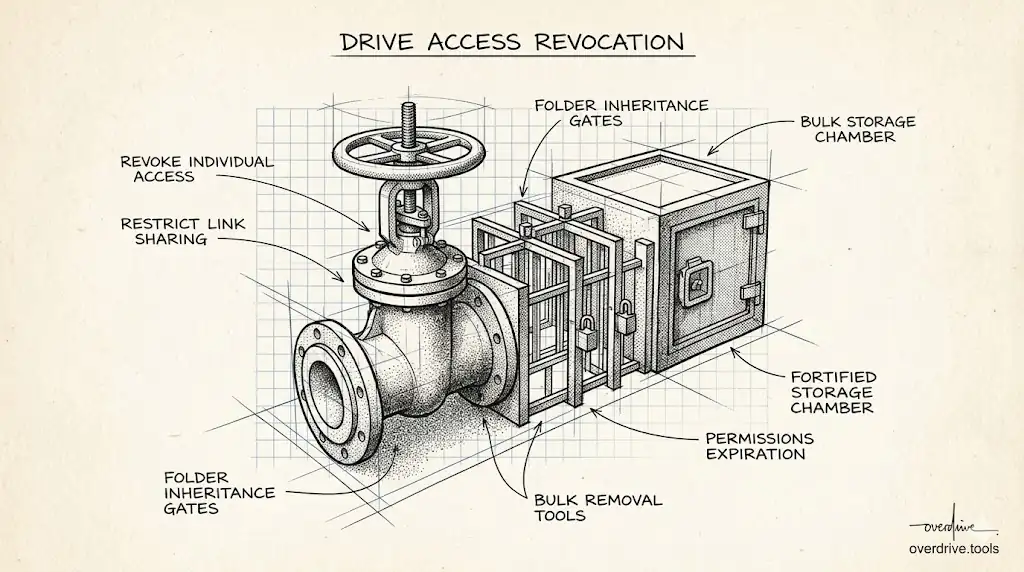
Removing access in Google Drive takes two minutes per file, but most people don't do it — not because it's hard, but because they don't realize access was granted in the first place. Files shared with contractors, old colleagues, or external reviewers stay accessible indefinitely unless you explicitly remove it. Here's how to remove access for every scenario.
Removing Access from a Specific Person
This is the most direct method — revoking one person's access to one file.
Open Google Drive and right-click the file, then select Share. In the sharing dialog, find the person's name in the list of people with access. Click the dropdown next to their name (which shows their current role: Viewer, Commenter, or Editor) and select Remove access. Click Save.
Their access is revoked immediately. If they have the file open in another tab, they'll lose the ability to make changes as soon as you save, and won't be able to reopen the file.
The same process works for folders. Removing someone's access to a folder removes their access to everything inside it — unless individual files within the folder have been shared with them separately (those shares persist and would need to be removed individually).
Removing Link Sharing (Anyone with the Link)
If you shared a file using "Anyone with the link," removing specific people from the list doesn't prevent access — anyone who has the link can still open the file. You need to change the general access setting.
Open the sharing dialog for the file. At the bottom of the dialog, you'll see "General access" with a setting like "Anyone with the link." Click the dropdown and change it to Restricted. Click Done.
Once set to Restricted, the link stops working immediately. Anyone who tries to open the old link will see an "Access denied" message. You can still share the file with specific people using their email addresses — those individual shares are separate from the link setting.
If you want to share the file more broadly again in the future, you'd need to generate new link access. The old link doesn't get reactivated just by switching back to "Anyone with the link" — it generates a new link.
Removing Access from Multiple Files at Once
Google Drive doesn't have a built-in bulk access removal tool in the standard interface. You can only remove access file by file, or folder by folder.
For larger-scale removal — for example, when an employee leaves and you need to remove their access across dozens of shared files — there are a few options. Google Workspace admins can use the Admin Console to manage a departing user's file access across the organization. For personal accounts or non-admin situations, Overdrive can scan your entire Drive, show you everything shared with a specific person or domain, and let you revoke access in bulk rather than opening each file individually.
What Happens When You Remove Access
When you remove someone's access, a few things happen immediately:
- They can no longer open the file in Drive
- Any links they had to the file stop working (for Restricted files — they can't re-access even with the URL)
- They won't receive a notification that access was removed
- Their comments in Google Docs remain visible, but they're attributed to "a user" or their name depending on account status
- Any copies they made to their own Drive remain — removing their access to the original doesn't affect copies
That last point is important: you cannot take back a copy someone made. If a person made a copy of your Google Doc before you removed their access, their copy exists in their Drive and is now owned by them. The only thing you control is access to the original.
Removing Inherited Access
Inherited access is one of the trickier scenarios. If you shared a folder with someone, they automatically have access to every file inside it. You can't reduce their access to individual files below what the folder grants.
If you need a specific file to be accessible to fewer people than the rest of the folder, your options are:
- Move the file out of the shared folder — place it somewhere not shared with those people
- Remove the person from the folder — which removes their access to all files in it
- Change the folder's sharing settings — which affects everyone who had access through that folder
There's no way to say "this person can access the folder but not this specific file inside it" when the file is inside the shared folder. The inheritance always grants at least folder-level access.
Removing Access for Former Employees or Contractors
When someone leaves a project or organization, it's worth doing a focused access review rather than just hoping nothing important remains shared. The typical approach is to search for files you've recently shared and check whether their access is still appropriate.
In Google Drive, you can search for files shared with a specific person using the operator to:email@example.com. This returns files you've shared with that address. From the results, you can open each file and remove their access.
The limitation is that this only shows files you own. If the former employee had files shared with them by others in your organization, those owners would need to remove access themselves — or a Workspace admin would need to step in.
For teams with regular contractor or staff changes, a periodic access audit is more reliable than trying to remember who has what access. Checking quarterly prevents access from accumulating over time.
Revoking Editor Permissions Without Removing Access
Sometimes you want to keep someone in the loop but stop them from making changes. Instead of removing access entirely, you can downgrade their permission level.
In the sharing dialog, click the dropdown next to their current role and change it from Editor to Commenter or Viewer. They'll still be able to open the file and see its contents, but they won't be able to edit it or (in the case of Viewer) leave comments.
This is useful during review periods, after a document is finalized, or when transitioning someone off a project while still giving them read access to historical work.
Setting Access to Expire Automatically
For Google Workspace accounts, you can set an expiration date on someone's access instead of removing it manually. In the sharing dialog, click the three dots next to a person's name and select Add expiration date. Set a date and their access automatically revokes on that day.
This is useful for contractors with a known end date, for sharing a file during a limited review window, or for any situation where you know in advance when access should end. Setting expiration at the time of sharing removes the need to remember to revoke it later.
Frequently Asked Questions
Does removing access notify the person? No. Google Drive sends no notification when you remove someone's access. They'll find out the next time they try to open the file and see "You don't have access."
Can I remove access from files I don't own? If you're an Editor on someone else's file, you can see who has access but generally can't remove other users unless the owner has given you full sharing control. Only the owner (and Workspace admins) can reliably remove all access to a file.
What happens if I remove a Shared Drive member? Removing someone from a Shared Drive removes their access to all files in that drive immediately. Unlike My Drive sharing, Shared Drive access is managed at the drive membership level, not file by file. Anything they added to the Shared Drive stays there — it belongs to the organization, not to them.
If I stop sharing a folder, do links to individual files inside still work? It depends on how those files were shared. If a file inside the folder had its own separate "Anyone with the link" share, that link still works after you remove folder sharing. Only shares that were exclusively granted through the folder are revoked. This is why checking both folder-level and file-level sharing matters when doing a cleanup.
Can I see a log of who I've removed access from? Google Drive doesn't provide a change history for sharing settings. There's no built-in log showing when access was granted or revoked. For Google Workspace accounts, admins can view Drive audit logs through the Admin Console, which include sharing changes.
Related Articles
- Google Drive Permissions Explained: Viewer, Commenter, Editor, and Owner
- Who Has Access to My Google Drive?
- How to Find All Externally Shared Files in Google Drive