How to Check Google Drive Storage Usage by Folder
How to break down which folders are consuming the most space in Google Drive so you can clean up strategically instead of guessing.
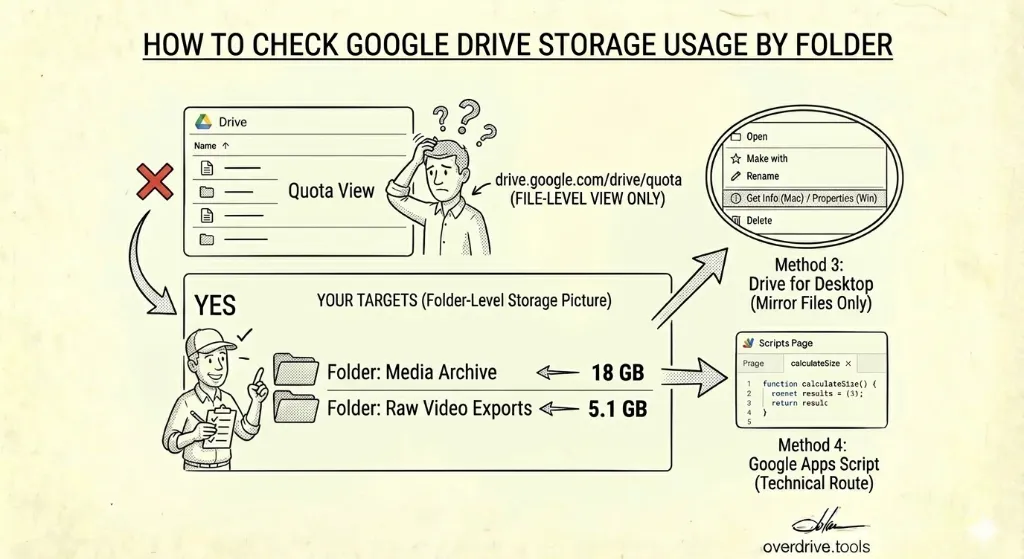
Google Drive doesn't show folder sizes. There's no column you can sort, no right-click option, no built-in breakdown that tells you "this folder is using 4 GB." What Drive does offer is a file-level storage view sorted by size—which is useful, but doesn't answer the question most people actually have: which part of my Drive is eating the most space?
Here's what you can do natively, where that falls short, and how to get a true folder-level picture when you need one.
What Google Drive's Storage View Actually Shows
The closest thing Drive has to a storage breakdown is the quota view at drive.google.com/drive/quota. This lists every file in your My Drive sorted from largest to smallest. It covers files you own—not files shared with you, which don't count against your storage.
To reach it:
- Open Google Drive on desktop
- In the left sidebar, click Storage (underneath the storage usage bar)
- Your files appear sorted by size, largest first
This is genuinely useful for finding large individual files—videos, ZIP archives, PSDs, raw exports—that you may have forgotten about. A single file consuming 2 GB is much easier to deal with than a thousand small ones.
What it doesn't tell you is how much any given folder is using in total. If your largest files are scattered across a dozen different folders, the quota view won't surface that pattern.
Method 1: Work From the Quota View (Good Enough for Most Cases)
For many people, the file-level view is sufficient. The goal of a storage audit is usually to find the biggest wins—and those almost always come from a small number of large files.
How to use it strategically:
Open the quota view and scan the top 20–30 files. Note which folders they're in. If you see several large files all coming from the same folder (say, an old video project or a client archive), that's your signal—that folder is the one to investigate.
You're essentially inferring folder size from the distribution of large files within it. It's not precise, but it's often enough to decide where to start cleaning.
What to watch for:
- Video files (.mp4, .mov, .avi) are almost always the biggest consumers
- Large ZIP or archive files that were downloaded and never deleted
- Files with generic names like "export," "backup," or "final" that may be outdated
- Multiple versions of the same large file (look for duplicate names with "(1)" or "Copy of")
Method 2: Check Individual Folders Manually
If you suspect a specific folder is the culprit, you can get a rough sense of its size by selecting all its contents.
- Open the folder in Google Drive
- Click any file, then press Ctrl+A (Windows) or Cmd+A (Mac) to select everything
- Right-click and choose View details (or press i for the info panel)
The details panel shows the total size of the selected files. This works for files directly inside the folder—it doesn't automatically include subfolders. To include those, you'd need to select their contents separately.
This approach works well for investigating one or two suspected folders. It becomes tedious at scale.
Method 3: Use Google Drive for Desktop (Folder Size in Finder/Explorer)
If you have Google Drive for Desktop installed and your files are set to mirror locally (not just stream), your operating system's file browser will show folder sizes the way it would for any local folder.
On Mac: Right-click a folder → Get Info. The size shown reflects what's in that folder, including subfolders.
On Windows: Right-click a folder → Properties. The size shown is the full folder size.
This only works if Drive for Desktop is running in Mirror files mode (files stored both locally and in the cloud). If you're using Stream files mode, local folder sizes won't be accurate because files aren't fully downloaded.
It's also limited to your My Drive. Shared Drive folders won't appear with accurate sizes this way.
Method 4: Google Apps Script (For the Technical Route)
Google Apps Script can calculate folder sizes programmatically by iterating through all files in a folder and summing their sizes. This is the only free, built-in way to get precise folder-level storage data without a third-party tool.
A basic script looks like this:
function getFolderSize() {
  var folderId = 'YOUR_FOLDER_ID_HERE'; // paste from the folder's URL
  var folder = DriveApp.getFolderById(folderId);
  var size = calculateSize(folder);
  Logger.log(folder.getName() + ': ' + (size / 1073741824).toFixed(2) + ' GB');
}

function calculateSize(folder) {
  var total = 0;
  var files = folder.getFiles();
  while (files.hasNext()) {
    total += files.next().getSize();
  }
  var subfolders = folder.getFolders();
  while (subfolders.hasNext()) {
    total += calculateSize(subfolders.next());
  }
  return total;
}
To use it:
- Go to script.google.com and create a new project
- Paste the script, replacing
YOUR_FOLDER_ID_HEREwith the ID from your folder's URL (the long string after/folders/) - Click Run → getFolderSize
- Grant the required permissions when prompted
- View results in View → Logs
One limitation: Google Apps Script has a 6-minute execution limit. For very large folders with thousands of files, the script may time out before finishing. You'd need to run it on subfolders separately.
Method 5: Third-Party Storage Analyzers
Several tools are built specifically to give you a folder-by-folder Drive storage breakdown without writing any code. They connect via OAuth (the same permission flow as any other Drive app), scan your Drive, and present a visual breakdown of which folders are using the most space.
Overdrive does this as part of its Drive analysis—showing you storage consumption by folder and file type so you can see at a glance where space is concentrated, rather than inferring it from a flat file list.
If you use any third-party tool for this, the same advice from the third-party app audit post applies: review the permissions it requests, use it, then revoke access afterward if you don't plan to keep using it.
What About Shared Drives?
Shared Drive storage is tracked differently. Individual files in a Shared Drive count against the organization's storage pool, not any individual user's quota. But if you're an admin and need to see how much a specific Shared Drive is using:
- Open Google Drive and expand Shared drives in the left sidebar
- Click on the Shared Drive you want to check
- Click the info icon (ⓘ) in the upper right
- Scroll down in the Details panel — it shows the storage used by that Shared Drive
This gives you a total for the entire Shared Drive, not a breakdown by subfolder within it. For subfolder-level analysis inside a Shared Drive, you'd need the Apps Script or a third-party tool approach above.
What Doesn't Work
A few things people commonly try that don't actually show folder sizes:
Right-clicking a folder in Drive and selecting "View details" shows the folder's metadata (owner, date created, sharing settings) but not its size.
Sorting by storage in the left sidebar shows file-level data only—folders aren't included as items with a size.
Drive's storage settings page (drive.google.com/settings/storage) shows your total usage broken down by Google product (Drive, Gmail, Photos), not by folder within Drive.
The Practical Approach
For most cleanup projects, the combination of the quota view and manual folder inspection is enough. Start at drive.google.com/drive/quota, look at your top 20 largest files, note the folders they're in, and investigate those folders first. You'll typically find that a small number of folders account for most of the space—an old project, a media archive, a backup that was never cleaned up.
If you need a complete picture across your entire Drive without manual work, the Apps Script or a tool like Overdrive will give you that. But for targeted cleanup, following the large files usually gets you there faster.
Related Articles
- How to Find and Delete Duplicate Files in Google Drive
- Smart Google Drive Cleanup: Archive First, Delete Second
- Google Drive Storage Full? Here's Why (and How to Fix It)