How to Collaborate on Google Drive Without Losing Control of Your Files
How to use version history, comment workflows, and permission settings to keep shared Google Drive files organized and recoverable when multiple people are working in them.
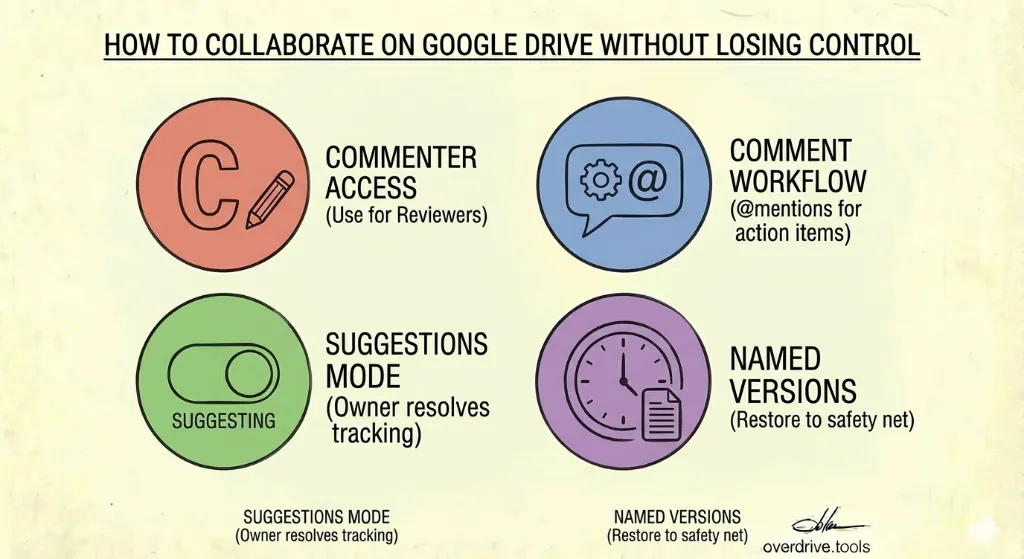
The short answer: give most collaborators Commenter access instead of Editor, use Suggestions mode for tracked edits, name key versions before big changes, and set permissions at the folder level rather than file by file. These four habits cover the vast majority of collaboration problems teams run into.
The rest of this guide explains how each of them works in practice.
Set the Right Permission Level Before Sharing
The single most common source of "someone messed up the file" problems is giving everyone Editor access by default. Google Drive has four permission levels, and choosing the right one for each collaborator is the first line of defense.
Viewer — Can read the file, nothing else. Use this for stakeholders who need to stay informed but have no reason to touch the document.
Commenter — Can read and leave comments, but cannot make direct edits. This is the right default for most collaborators: reviewers, approvers, clients, and anyone whose input you want in comments rather than inline.
Editor — Can edit, rename, move, and (unless you restrict it) reshare the file. Reserve this for the small group of people who are actively writing or structuring the document.
Owner — Full control, including permanent deletion. Only one person can own a file at a time.
When you share a file or folder, Google defaults to Editor. Change it to Commenter for anyone who doesn't strictly need to edit. The comments workflow is robust enough for most review processes, and it keeps the document itself intact.
The September 2025 Permissions Change
As of September 2025, Google updated how permissions cascade through folders. Files now inherit the permissions of their parent folder — you can no longer restrict an individual file to be more restrictive than the folder it lives in. If a folder is shared with someone as an Editor, all files inside it will also be accessible to that person at the Editor level.
The practical implication: set permissions at the folder level thoughtfully, because they now reliably flow down to every file inside. If you have sensitive files that shouldn't be accessible to everyone with folder access, move them to a separate folder with its own sharing settings rather than trying to restrict individual files.
Use Suggestions Mode, Not Direct Edits
For Google Docs, Sheets, and Slides, Suggestions mode is the cleanest way to handle collaborative editing. Suggested changes show up as markup that the document owner can accept or reject — similar to Track Changes in Word — without anyone overwriting content directly.
To turn on Suggestions mode in a Google Doc:
- Open the document
- Click the pencil icon in the top-right corner (the editing mode selector)
- Select Suggesting
Any edits made in Suggesting mode appear as color-coded markup attributed to the person who made them. The original text stays visible until the suggestion is accepted or rejected.
For reviewers: If you've given collaborators Commenter access, they're automatically in Suggesting mode — they can't switch to direct editing even if they try. This is another reason Commenter is a better default than Editor for most reviewers.
When to accept or reject suggestions: Designate one person as the document owner responsible for resolving suggestions. Leaving dozens of unresolved suggestions in a document creates confusion about what the current state actually is. Build a habit of resolving them at each review milestone.
Use Comments for Feedback, Not Inline Edits
Comments keep discussion attached to the specific part of the document it refers to, without changing the document itself. They're the right tool for questions, feedback, requests for clarification, and decisions that need to be recorded.
Leaving a useful comment:
- Select the text or cell the comment refers to
- Right-click → Comment, or press Ctrl+Alt+M (Windows) / Cmd+Option+M (Mac)
- Type your comment, then click Comment
@ mentions: Type @ followed by a person's name or email to notify them directly. Google will send them an email linking to the exact comment. Use this to assign action items or pull someone's attention to a specific point.
Resolving comments: Once a comment has been addressed, the person who left it (or the document owner) should click Resolve. Resolved comments are archived, not deleted — you can view them via View → Comments → All comments if you need to refer back.
A common problem: comment threads that go stale and never get resolved. Before a document is considered final, do a sweep to resolve or address every open comment. Open comments on a "finished" document are a sign that something was missed.
Use Version History as Your Safety Net
Google Docs, Sheets, and Slides automatically save a continuous version history. You can view every edit ever made to a document, see who made each change, and restore any previous state.
To access version history:
- Open the document
- Go to File → Version history → See version history
- The right panel shows a timeline of edits grouped by time period, with each contributor color-coded
Important limits: Version history for Google Docs/Sheets/Slides is kept indefinitely for named versions. Unnamed auto-saved versions may be pruned after 30 days or after 100 newer versions exist. If a particular state of the document matters, name it before it gets rolled off.
How to Name a Version
- Open version history (File → Version history → See version history)
- Find the version you want to name
- Click the three-dot menu next to it → Name this version
- Give it a descriptive name: "Before legal review," "Client-approved draft," "Final — submitted"
Named versions persist indefinitely and are easy to filter for. Make it a habit to name a version before any significant round of edits, especially when a document is about to go into a formal review process.
Restoring a Previous Version
If edits go wrong — someone deletes a section, a bulk change breaks the formatting, a document gets garbled during a paste — restoring a version takes seconds:
- Open version history
- Click the version you want to restore
- Click Restore this version at the top
- Confirm
Restoring doesn't delete the newer history. The restored version becomes the new current state, but you can still access the intermediate versions in the timeline.
One caveat: Only Editors and Owners can view version history. Commenters and Viewers cannot see it. This is worth knowing when you're structuring access — if a collaborator needs to be able to review the document's edit trail, they need Editor access.
Non-Google Files: Version Management Is Different
Everything above applies to native Google Docs, Sheets, and Slides. For uploaded files — PDFs, Word documents, Excel spreadsheets, images — version history works differently.
For uploaded files stored in Drive:
- Right-click the file → Manage versions
- Click Upload new version to add a new version of the file
Non-Google file versions follow a different retention rule: versions are deleted after 30 days or after 100 newer versions exist, unless you mark them Keep forever.
If you're managing an uploaded file that goes through multiple revision cycles, mark important versions as Keep forever immediately after uploading them. Otherwise they'll eventually be pruned automatically.
Shared Drives vs. My Drive for Team Files
For ongoing team collaboration, Shared Drives are significantly better than sharing from a personal My Drive. Files in a Shared Drive are owned by the team, not an individual — so if the person who originally created a file leaves the organization, the file doesn't disappear with their account.
Shared Drives also make permission management more predictable: you set access at the drive or folder level, and it applies consistently to everyone in that group. This aligns well with the folder-level permission model described above.
For files that are purely personal or in progress before you're ready to share them, My Drive is fine. But for anything your team relies on, move it to a Shared Drive.
If you're inheriting a Drive where personal and team files are mixed together — files in individual My Drives that should be accessible to the whole team — transferring ownership to a Shared Drive is usually the right cleanup step. Overdrive can help you identify files that are broadly accessed but still owned by individuals, which is the pattern you're looking for when deciding what to move.
A Practical Checklist for Shared Files
Before sharing a document with a group:
- Set the permission level to the minimum needed (Commenter for reviewers, Editor only for active collaborators)
- Name the current version before sending it out
- Turn on Suggestions mode if you're sharing with Editors
- Confirm the file is in the right folder, since folder permissions now cascade
After a review round:
- Resolve all open comments, or explicitly mark them for follow-up
- Accept or reject all pending suggestions
- Name the post-review version if it represents a meaningful milestone
Related Articles
- Google Drive Permissions Explained: Viewer, Commenter, Editor, and Owner
- How to Audit Google Drive When an Employee Leaves Your Company
- Google Drive Folder Structure: Best Practices for 2026