How to Restrict Downloading and Printing in Google Drive
How to disable downloading, printing, and copying for viewers and commenters in Google Drive—for individual files, shared drives, and organization-wide using admin controls.
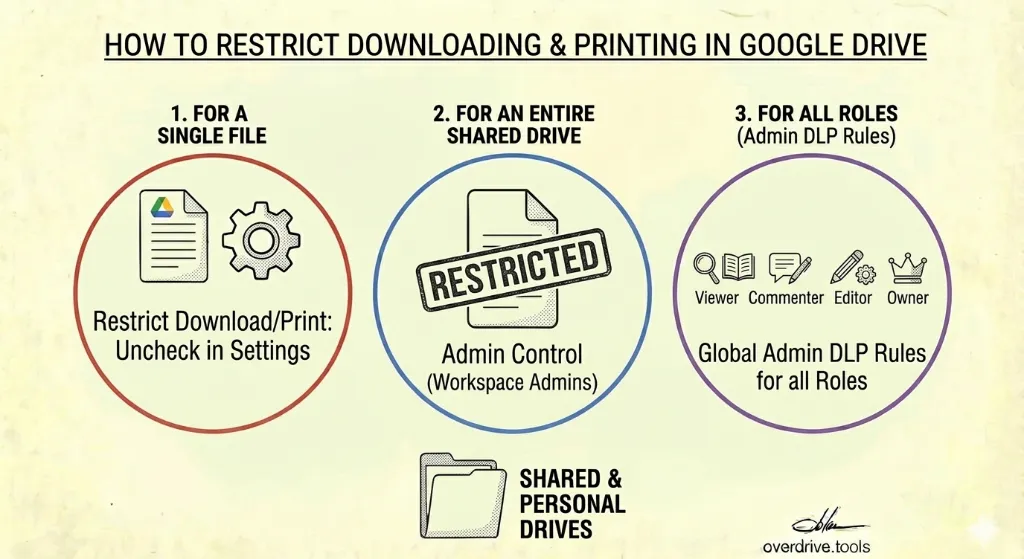
Google Drive has a built-in setting that removes the download, print, and copy options for anyone with Viewer or Commenter access to a file. It works on Google Docs, Sheets, Slides, and any other file stored in Drive. Most people who share sensitive documents don't know it exists.
Here's how to turn it on — for a single file, for an entire Shared Drive, and at the organization level.
For a Single File (Desktop Only)
This is the setting individual file owners can control. It applies to anyone with Viewer or Commenter access.
- Open Google Drive on desktop and locate the file
- Right-click the file and select Share, or open the file and click Share in the top right
- In the sharing dialog, click the Settings gear icon in the top right corner of the dialog
- Under "People who can download, copy, and print," uncheck Viewers and commenters
- Click Done or Save
Once this is enabled, the download, print, and export options are grayed out or removed from the interface for anyone with Viewer or Commenter access. They'll see the file in their browser but won't find the usual menu options to take a copy.
Important: This setting can only be applied from a desktop browser. There is no way to set it from the Google Drive mobile app.
Editors are not restricted by this setting when applied by the file owner. If you want to prevent Editors from downloading and printing, that requires admin-level DLP controls (covered below).
For All Files Shared with a Specific Person
There is no bulk "restrict download" toggle per person across your whole Drive. The setting must be applied file by file, or at the Shared Drive level (see below).
If you need to restrict access more broadly for a specific collaborator, the most practical approach is to move the relevant files into a single folder or Shared Drive, apply the restriction there, and manage that person's access at the folder level.
For an Entire Shared Drive (Workspace Admins)
Workspace admins can apply the download/print/copy restriction to an entire Shared Drive, which then applies to all files within it.
- Sign in to the Google Admin Console
- Go to Apps → Google Workspace → Drive and Docs
- Click Manage Shared Drives
- Find the Shared Drive you want to restrict and click on it
- Click Settings
- Uncheck Allow viewers and commenters to download, print, and copy files
- Click Done
This overrides any individual file settings within that drive. Users will see the message "Commenters and viewers can't download, copy, or print files in this shared drive" if they attempt those actions.
Note: Changing the default setting in the Admin Console affects only new Shared Drives going forward, not existing ones. To restrict existing Shared Drives, you need to update each one individually via Manage Shared Drives.
For All Roles Including Editors (Admin DLP Rules — January 2025)
As of January 2025, Google expanded its Information Rights Management (IRM) controls so that admins can apply download and copy restrictions to all user roles — including Editors and file owners — through Data Loss Prevention (DLP) rules. Previously this was only possible for Viewers and Commenters.
When a DLP rule applies IRM to a file and an Editor is affected:
- Download, print, and export options are removed from the interface
- Copy and paste still works, but only within that document — content cannot be pasted into another file or application
Setting up DLP rules requires a Google Workspace edition that includes DLP (Business Standard and above). Configuration is done in the Admin Console under Security → Data protection → Manage rules.
This is the appropriate path for organizations that need to restrict sensitive files even from internal team members with edit access — for example, contracts, HR documents, or financial records that should be viewable but not extractable.
What This Setting Actually Does (and Doesn't Do)
It's worth being clear about what this restriction accomplishes. It removes the UI controls for downloading, printing, and copying — but it does not prevent someone from capturing the content in other ways.
What it prevents:
- Using File → Download in Google Docs/Sheets/Slides
- Using the download button in Drive's file preview
- Using File → Print
- Using Ctrl+C / Cmd+C to copy text (the copy menu option is removed)
- Exporting via File → Email as attachment
What it does not prevent:
- Screenshots or screen recordings
- Photographing the screen with another device
- Using browser developer tools to access underlying content
- Offline access if the user had previously enabled it before the restriction was set
This means the setting is effective against casual or accidental copying, and adds meaningful friction for most users. It is not a technical barrier against someone who is specifically trying to extract the content.
For highly sensitive documents, treat this as one layer of a broader approach: combine it with restricted sharing (specific people only, not "anyone with the link"), expiry dates on access where available, and for Workspace organizations, DLP rules and audit logging.
Checking Whether Restriction Is Already Enabled
To verify whether a file already has download/print/copy restricted:
- Open the sharing dialog for the file
- Click the Settings gear icon
- Check the state of the Viewers and commenters checkbox under download/copy/print
There is no view in Google Drive that lists all files where this restriction is active — you have to check file by file. For organizations that need a comprehensive view of which files have this restriction applied (and which sensitive files don't), that kind of audit requires either the Drive API or a management tool. Overdrive surfaces file-level permission details across your Drive, which makes it easier to identify sensitive files that are shared broadly but missing this restriction.
When to Use It
The most common situations where this restriction makes sense:
- Contract or proposal drafts shared with clients for review — you want feedback, not a copy they can circulate
- Pricing documents or rate cards shared externally — visible for reference, not for redistribution
- Internal HR or financial documents shared with a limited audience within the organization
- Templates or proprietary materials where the format or content is something you want to protect from being lifted wholesale
- Any "view only" share where you actually mean view only
It's worth turning on proactively for any file you'd describe as sensitive before sharing. The cost of enabling it is near zero; the cost of forgetting it on a document that gets downloaded and redistributed is higher.
Related Articles
- Google Drive Permissions Explained: Viewer, Commenter, Editor, and Owner
- How to Find All Externally Shared Files in Google Drive
- The Complete Google Drive Security Audit Checklist