How to See Shared Links in Google Drive
Google Drive doesn't show a list of all your active shared links in one place. Here's how to find files shared via link — and how to check which links are still active.
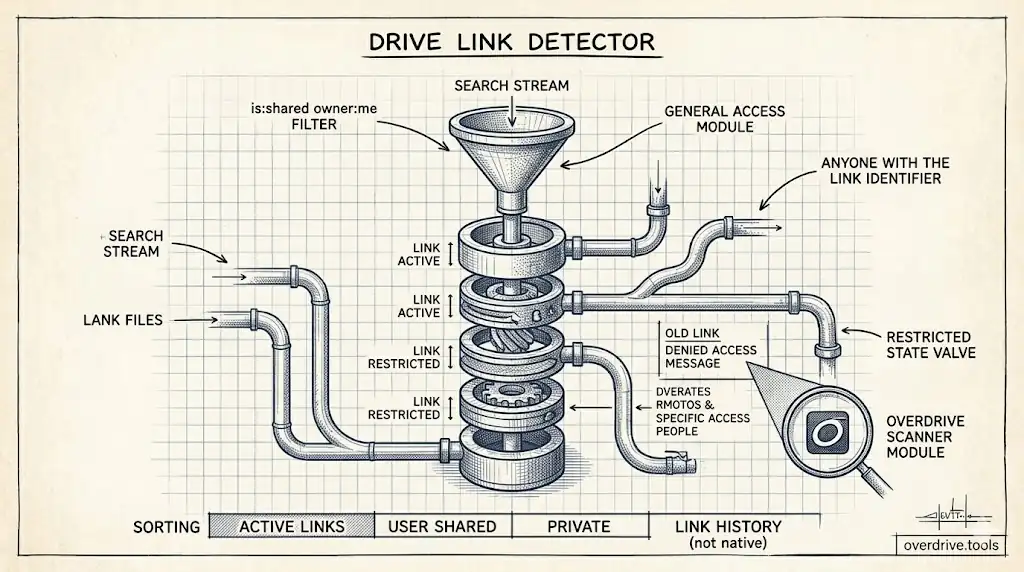
Google Drive doesn't show a dedicated list of all files shared via link. To find them, use Drive's search with the filter "Shared with anyone with the link" — or search for is:shared owner:me to surface files you own that have any active sharing. You can then check each file's sharing settings to see if it has an active link.
The fastest way to see all link-shared files across your entire Drive is with Overdrive, which scans your Drive and surfaces all "Anyone with the link" shares in one view — useful if you have hundreds of files and can't check them one by one.
How to Find Link-Shared Files in Google Drive
On desktop:
- Open Google Drive
- In the search bar, type
is:shared owner:meand press Enter - This shows all files you own that are shared with anyone
- Click a file to select it, then click the Share button (or right-click → Share)
- In the sharing dialog, look at General access at the bottom
- If it says "Anyone with the link," the file has an active shareable link
Repeat for each file in the results to identify which ones use link sharing versus individual user sharing.
Using the search filter:
- Click the search options icon (the slider icon) in the Drive search bar
- Under "Shared with," you can filter by access type
- This narrows results to files matching the sharing criteria you select
How to Check If a Specific File Has an Active Link
- Right-click the file in Google Drive
- Select Share → Share
- Look at the General access section at the bottom of the dialog
- If it shows "Anyone with the link," there is an active shareable link
- If it shows "Restricted," no link is active — only specific people can access it
How to Disable a Shared Link
To turn off link sharing for a file:
- Open the sharing dialog (right-click → Share)
- Under General access, click the dropdown
- Change it from "Anyone with the link" to Restricted
- Click Done
The link stops working immediately. Anyone who tries to use the old link will see an access denied message.
Limitations
Google Drive does not provide a single list of all active shared links across your Drive. You must check files individually, or use search to surface shared files and review them one by one. There is no "copy all active links" or "link history" feature in Drive's native interface.
For personal accounts, there's also no way to see who has actually opened a shared link — Drive doesn't log viewer identity for link-based access.
Related Articles
- Who Has Access to My Google Drive?
- Google Drive Permissions Explained: Viewer, Commenter, Editor, and Owner
- How to Find All Externally Shared Files in Google Drive