Can Viewers Download Files in Google Drive?
Viewers can download Google Drive files by default. Here's how to disable that, which file types you can protect, and where the setting falls short.
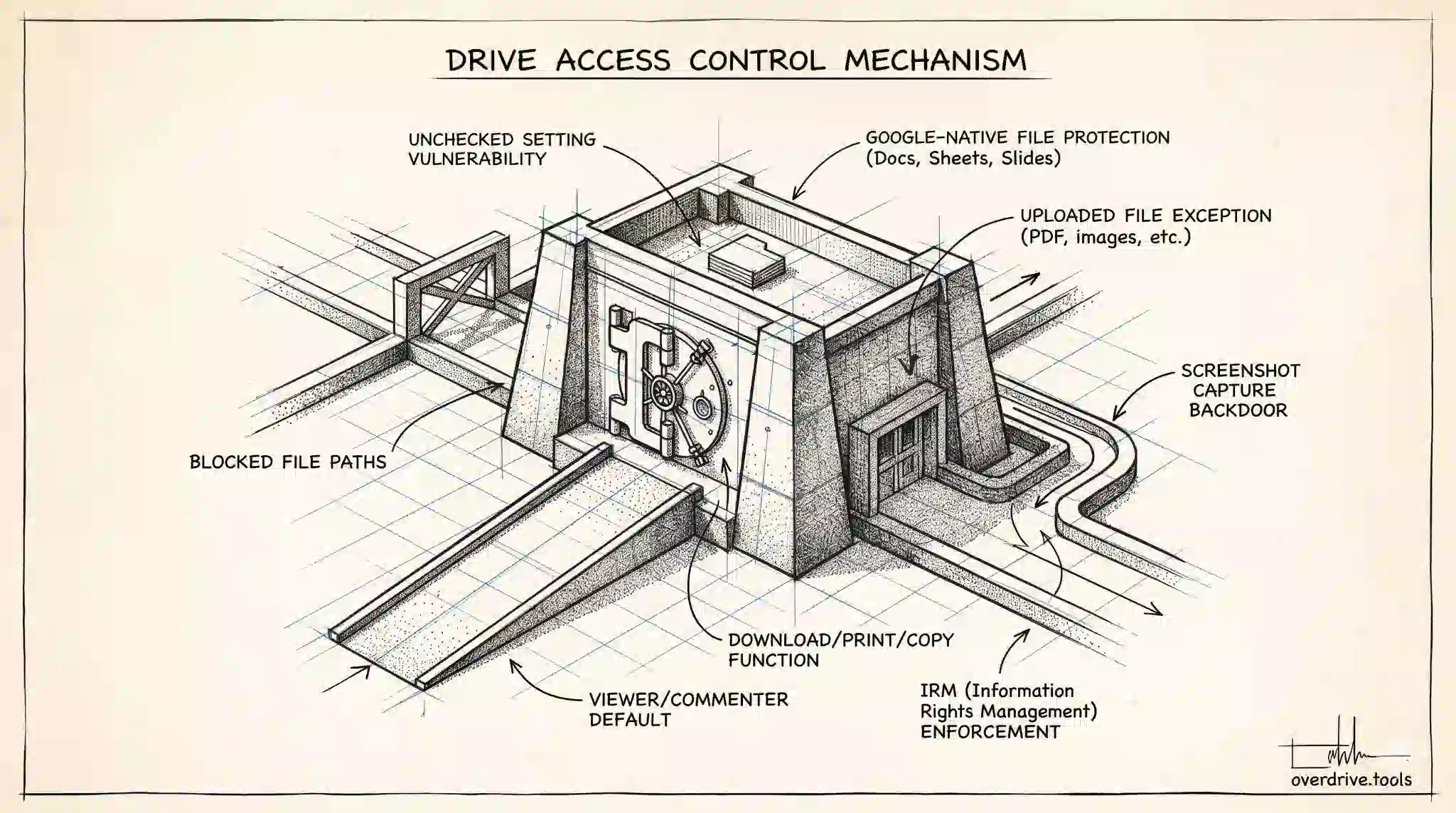
Yes — by default, anyone with Viewer or Commenter access to your Google Drive file can download it, print it, and copy its contents. Most people sharing files assume "Viewer" means read-only. It does, in terms of editing. But it doesn't stop someone from saving a local copy of whatever you've shared.
Here's what's actually happening, how to change it, and where the protection breaks down.
What Viewer and Commenter Access Actually Allows
When you share a file with Viewer access, that person can open the file and read it. They cannot make edits or leave comments. When you share with Commenter access, they can read and leave comments, but still cannot edit.
What both of those roles can do by default: download the file to their computer, print it, and copy its text or content. The download button is visible and functional for all shared users unless you explicitly turn it off.
This surprises people because the mental model of "Viewer" implies passive, read-only access — which is true for the file itself, but not for whether someone can take a copy away.
How to Disable Downloads for Viewers and Commenters
You can restrict downloads for a specific file directly from the sharing settings.
Open the file in Google Docs, Sheets, or Slides, then click Share in the top right. In the sharing dialog, click the gear icon (Settings). You'll see a checkbox labeled "Viewers and commenters can see the option to download, print, and copy." Uncheck it, then click Done.
Once that's turned off, the download, print, and copy options are grayed out and unavailable when someone with Viewer or Commenter access opens the file. Editors and Owners are unaffected — they retain full access.
You can also apply this setting to multiple files at once by selecting them in Drive and adjusting the sharing settings from the right-click menu.
The Catch: This Only Works for Google-Native Files
The download restriction only applies to files in Google's native formats — Google Docs, Sheets, Slides, Forms, and Drawings. It does not apply to uploaded files.
If you upload a PDF, Word document, image, or video to Drive and share it, that file is always downloadable regardless of permission level. Drive treats non-Google files as binary objects and has no mechanism to block downloading them. The only way to restrict access to an uploaded file is to not share it at all, or to convert it to a Google-native format first.
This is the most common source of confusion when the setting appears to not be working.
The Deeper Limitation: Screenshots Still Work
Even when download restrictions are enabled on a Google-native file, they only disable the UI controls. A determined person can still capture the content using their phone camera, a screenshot tool, or by printing to a virtual PDF printer on some systems.
Google acknowledges this — the restriction is designed to remove the easy path, not create absolute protection. For most use cases (sharing a draft with external reviewers, distributing a report to a large group) it's sufficient. For genuinely sensitive content that must not leave your control, a shared Drive file is probably the wrong medium regardless of what permissions you set.
Shared Drives Behave Differently
In a Shared Drive (formerly Team Drive), the download restriction works the same way at the file level. However, Shared Drive members with Commenter or Viewer access at the drive level follow the same rules as regular shared files — you'd still need to restrict each file individually.
Workspace admins can also enforce download restrictions across an entire organization using Google Drive's Information Rights Management (IRM) settings, removing the need to set it file by file.
Applying the Restriction to Folders
The download restriction can be applied to a folder, which then propagates to all files inside it — but with an important caveat. The restriction applies to files that don't have their own individual settings overriding the folder level. If a file inside a restricted folder has been explicitly shared with someone who has editor access, that editor is unaffected by the folder-level restriction.
To apply the restriction to a folder, right-click it in Drive, select Share, open the Settings gear icon, and uncheck the download permission. Files you add to that folder in the future will inherit the restriction, as will existing files that haven't been individually configured otherwise.
Converting Uploaded Files to Enable Download Restrictions
Because the download restriction only works on Google-native files, a practical workaround for PDFs or Word documents you want to protect is to convert them to Google Docs format. A PDF shared as a Google Doc can have the download restriction applied; the same PDF shared as an uploaded file cannot.
To convert: open the PDF or Word file in Drive, go to File > Save as Google Docs (or Sheets, Slides as appropriate). This creates a new Google-native copy of the file. You can then share the Google Docs version with restrictions enabled and either delete the original uploaded file or leave it unshared.
The converted version may have some formatting differences — especially complex Word documents with unusual layouts — so it's worth reviewing the conversion output before sharing. For straightforward text documents, the conversion is usually clean.
Restricting Downloads on Mobile
The download restriction setting is accessible from the Google Drive mobile app, though the path is slightly different. Open the file, tap the three-dot menu, and select Share. Tap the gear icon in the top-right corner of the share sheet to access the same settings available on desktop. The change applies immediately and syncs across devices.
Note that enforcing the restriction on mobile depends on users accessing the file through the Google Docs or Drive apps. Files accessed through other apps or mobile browsers may behave differently depending on how they handle Drive's permission signals.
Frequently Asked Questions
Does the download restriction prevent someone from using "Print to PDF"? On most desktop systems, when download is restricted, the print option is also disabled within the Google Docs interface. However, some operating-level print-to-PDF functions — accessed through browser menus rather than the Google Docs print button — may still work. Google acknowledges this gap; the restriction removes the easy path but doesn't prevent all methods of capturing content.
Can editors turn off the download restriction? Yes. If someone has editor access to a file, they can change its sharing settings, including the download restriction. To maintain a restriction that editors can't remove, you'd need to reduce their access to Commenter level or take sole ownership of the file.
Does this restriction apply when I share via a link? Yes. If you've disabled downloads for a file and then share it via an "anyone with the link" link, anyone who opens that link as a Viewer will also see the download option grayed out. The restriction is tied to the file, not to specific users.
What's the difference between removing editor access and enabling download restriction? Removing editor access drops someone to Viewer — they can still read and download (unless the restriction is also on). Enabling the download restriction keeps their access level the same but removes their ability to download. They're solving different problems: access restriction is about who sees the file, download restriction is about what they can do with it once they do see it.
If someone makes a copy of the file, does the copy inherit the restriction? No. A copy of a Google Drive file is a new file owned by the person who made the copy, and it starts with default sharing settings. Download restrictions are not inherited by copies. This is one reason why download restrictions are not a complete security measure — anyone with copy access can bypass the restriction by copying the file to their own Drive.
How to Check Who Can Currently Download Your Files
If you have a lot of externally shared files and want to audit which ones have the download restriction on or off, doing that file by file quickly becomes unmanageable. Overdrive can scan your entire Drive and surface all files shared externally, showing you their current permission settings in one view — making it faster to identify files that may be more exposed than you intended.
Related Articles
- Google Drive Permissions Explained: Viewer, Commenter, Editor, and Owner
- How to Find All Externally Shared Files in Google Drive
- Who Has Access to My Google Drive?