What Can a Viewer Do in Google Drive?
Viewers can see — and download — your Google Drive files by default. Here's exactly what viewer access allows, what it doesn't, and how to restrict it.
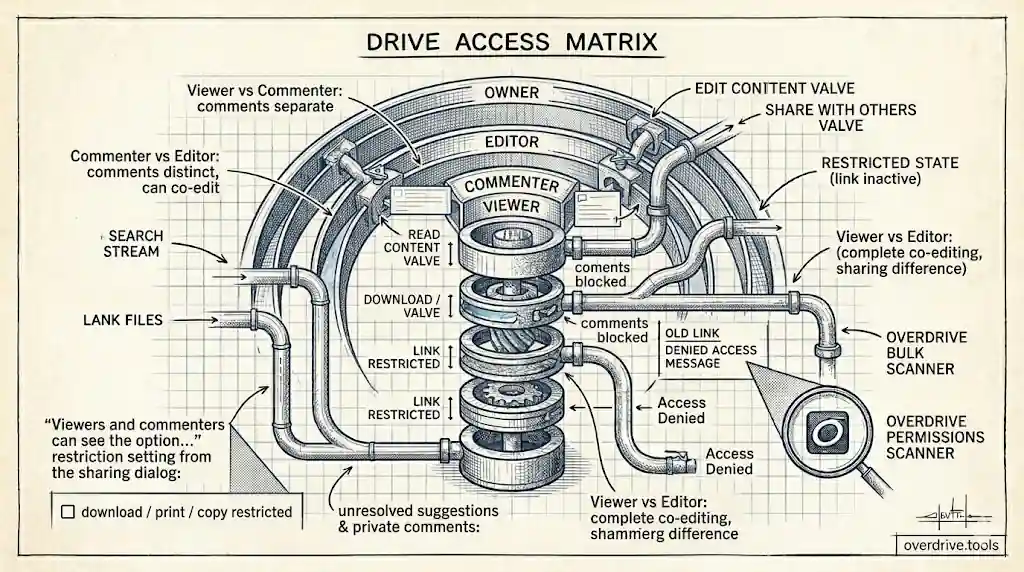
When you share a Google Drive file with someone as a Viewer, it's easy to assume they can only look — that the access is read-only in the safest possible sense. But viewer access allows more than most people realize, including downloading files in many cases.
Here's a clear breakdown of what viewers can and can't do, and what you can change if you need tighter control.
What a Viewer Can Do
Open and read the file. Viewers can open the file and read all of its content — text, data, images, everything in the document.
Download a copy. By default, viewers can download your file to their own computer. For a Google Doc, this means they can save it as a Word file, PDF, or other format. For a Google Sheet, they can export it as Excel or CSV. This is on by default unless you turn it off.
Print the file. Viewers can print the document, again by default.
Make a copy to their own Drive. Viewers can use File → Make a Copy to save their own editable version of the document to their Drive. That copy is then entirely theirs — outside your control.
See all content on shared tabs or sheets. In a Google Sheet with multiple tabs, viewers can see all sheets unless you've restricted access at the sheet level through a more complex setup.
What a Viewer Cannot Do
Edit the file. Viewers cannot type, delete, format, or change anything in the document.
Add comments. Commenting is a separate permission level (Commenter). Viewers cannot leave comments.
Share the file with others. Viewers cannot add new people to the file or change sharing settings.
See the version history. Viewers do not have access to the revision history showing who changed what and when.
See unresolved suggestions or private comments. In Google Docs, viewers don't see suggested edits or comments unless those are resolved and accepted.
How to Prevent Viewers From Downloading, Printing, or Copying
If you want people to be able to read a file but not take a copy of it, you can disable downloading, printing, and copying:
- Open the file in Google Drive
- Click Share
- At the bottom of the sharing dialog, click Settings (the gear icon)
- Uncheck Viewers and commenters can see the option to download, print, and copy
- Click Save
With this setting off, viewers will see the content but the download, print, and copy options are hidden from the menu. Note that this is not a hard technical lock — it's a UI restriction. Someone technically determined could still extract content through other means, but it removes the easy path.
This setting applies to everyone with viewer or commenter access on the file. Editors and owners are unaffected.
Viewer vs. Commenter vs. Editor — Quick Comparison
| Viewer | Commenter | Editor | |
|---|---|---|---|
| Read content | ✓ | ✓ | ✓ |
| Download / print / copy | ✓ (by default) | ✓ (by default) | ✓ |
| Add comments | — | ✓ | ✓ |
| Edit content | — | — | ✓ |
| Share with others | — | — | ✓ (by default) |
| Change sharing settings | — | — | Owner only |
When to Use Viewer Access
Viewer is the right access level when you need someone to read information but you don't want them making changes or leaving comments. Common scenarios: sharing a reference document, giving a client a final deliverable to review, distributing a policy or guide to a team.
If you want the person to be able to ask questions or give feedback within the document, Commenter is more appropriate. If you need them to co-edit, use Editor.
For sensitive documents where downloading is a concern — contracts, financial data, confidential reports — pair viewer access with the download/print/copy restriction to reduce risk.
If you want a full picture of who has viewer (or any other) access across your Drive — not just on one file at a time — Overdrive can surface all active permissions in one dashboard so you can review and adjust at scale.
Related Articles
- Google Drive Permissions: How to Review and Remove Access
- Google Drive Permissions Explained: Viewer, Commenter, Editor, Owner
- Can People See My Google Drive?